What is a Native Image?
GraalVM native image is an ahead-of-time compilation technology that generates native executables. Native executables have low resource usage and fast startup time in compact packaging.
It is an ideal candidate for serverless workloads in Java.
I use it to create hobby projects, so I don’t exhaust my free tier quotas on services like fly.io 😉
GraalVM Native Image is a broad topic with many resources and videos available for a deeper understanding. The Official documentation is a great place to start.
What’s the catch?
Java is a dynamic programming language and libraries use reflections. Not all libraries work with GraalVM, and you may encounter issues. Libraries and Framework support
All the classes and bytecodes that are reachable at runtime should be known at build time.
What are we building?
This blog series is the start of building a native springboot application with GraalVM native Image. We will start with a simple baseline application with Postgres DB.
Prerequisites
- Docker
- Java 21
Let’s do some coding!
Spring boot 3.3 has made it very easy to spin up a native application and with Paketo buildpacks there is barely any difference between packaging a jar and a native executable.
Creating Spring boot project
we’ll start off by going to https://start.spring.io/ to create our first Spring boot application
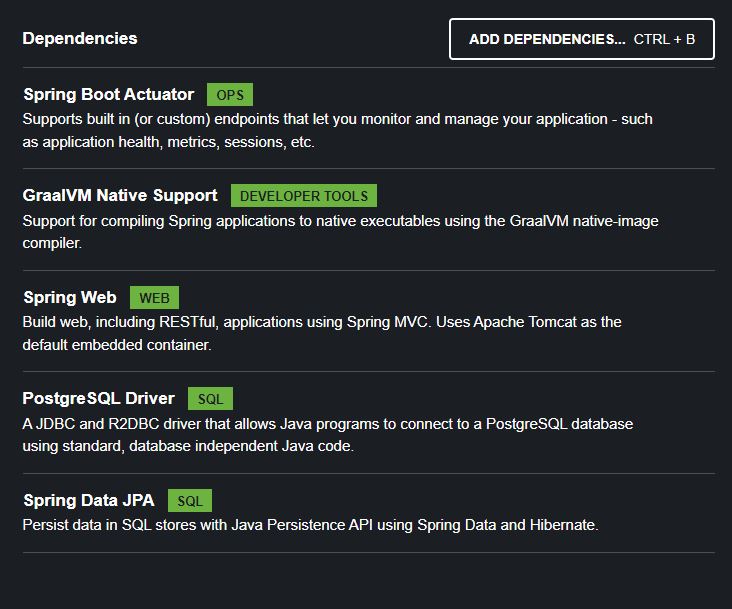
First run setup
Now, let’s add a JPA data source to our application and include Actuator for health checks.
spring:
  datasource:
    url: ${SPRING_DATASOURCE_URL:jdbc:postgresql://localhost:5432/postgres}
    username: ${SPRING_DATASOURCE_USERNAME:postgres}
    password: ${SPRING_DATASOURCE_USERNAME:postgres}
    driver-class-name: org.postgresql.Driver

  jpa:
    hibernate:
    show-sql: true
    properties:
      hibernate:
        dialect: org.hibernate.dialect.PostgreSQLDialect

management:
  endpoint:
    health:
      show-details: always
  health:
    diskspace:
      enabled: false
Setting up our docker
Open a terminal window and navigate to your project root directory.
We need a Postgres instance for our app to connect to and for the let’s use the docker run command.
Let’s create a docker network first. We need containers to be on the same docker network to communicate
docker network create spring-native-app-network
Now, we’ll bring up a Postgres container
docker run --rm --name postgres-db --network spring-native-app-network -e POSTGRES_USER=postgres -e POSTGRES_PASSWORD=postgres -p 5432:5432 -d postgres:latest
Building our native image
Here’s the magic! Packaging OCI Images
./mvn -Pnative spring-boot:build-image
Building the native image is resource-intensive, but once completed, you can spin up the container with the following command.
docker run -d --rm --name inventory-service --network spring-native-app-network -e SPRING_DATASOURCE_URL=jdbc:postgresql://postgres-db:5432/postgres -e SPRING_DATASOURCE_USERNAME=postgres -e SPRING_DATASOURCE_PASSWORD=postgres -p 8080:8080 inventory-service:0.0.1-SNAPSHOT
Goto http://localhost:8080/actuator/health and we should see
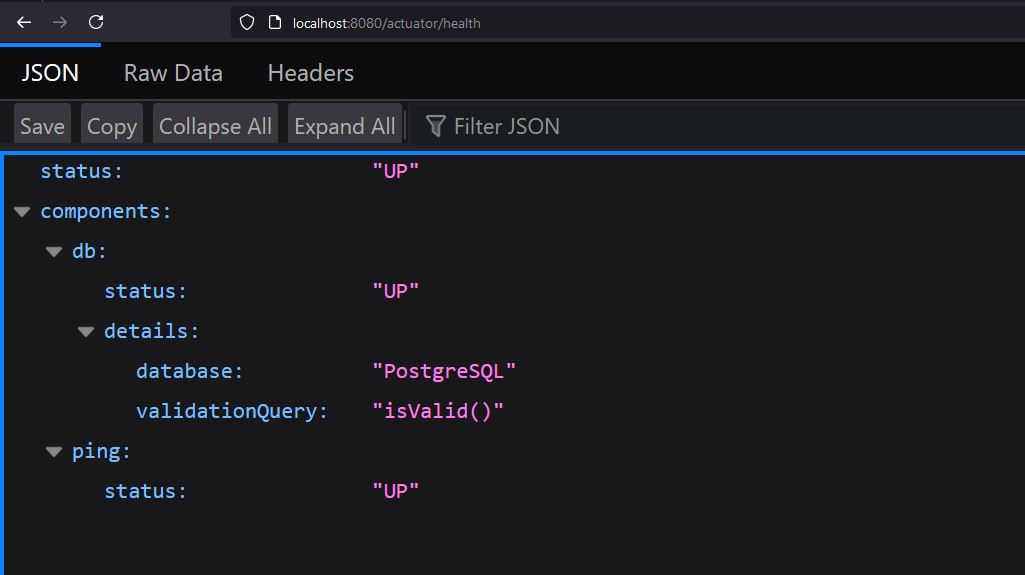
The source can be found here inventory-service repository
Comparison with JVM Image on idle
| Metrics | JVM | Native |
|---|---|---|
| Image size | 382.13MB | 188.68MB |
| Startup time | 2.337s | 0.223s |
| Memory Usage | 338.3MB | 100.2MB |